

Turning on the room
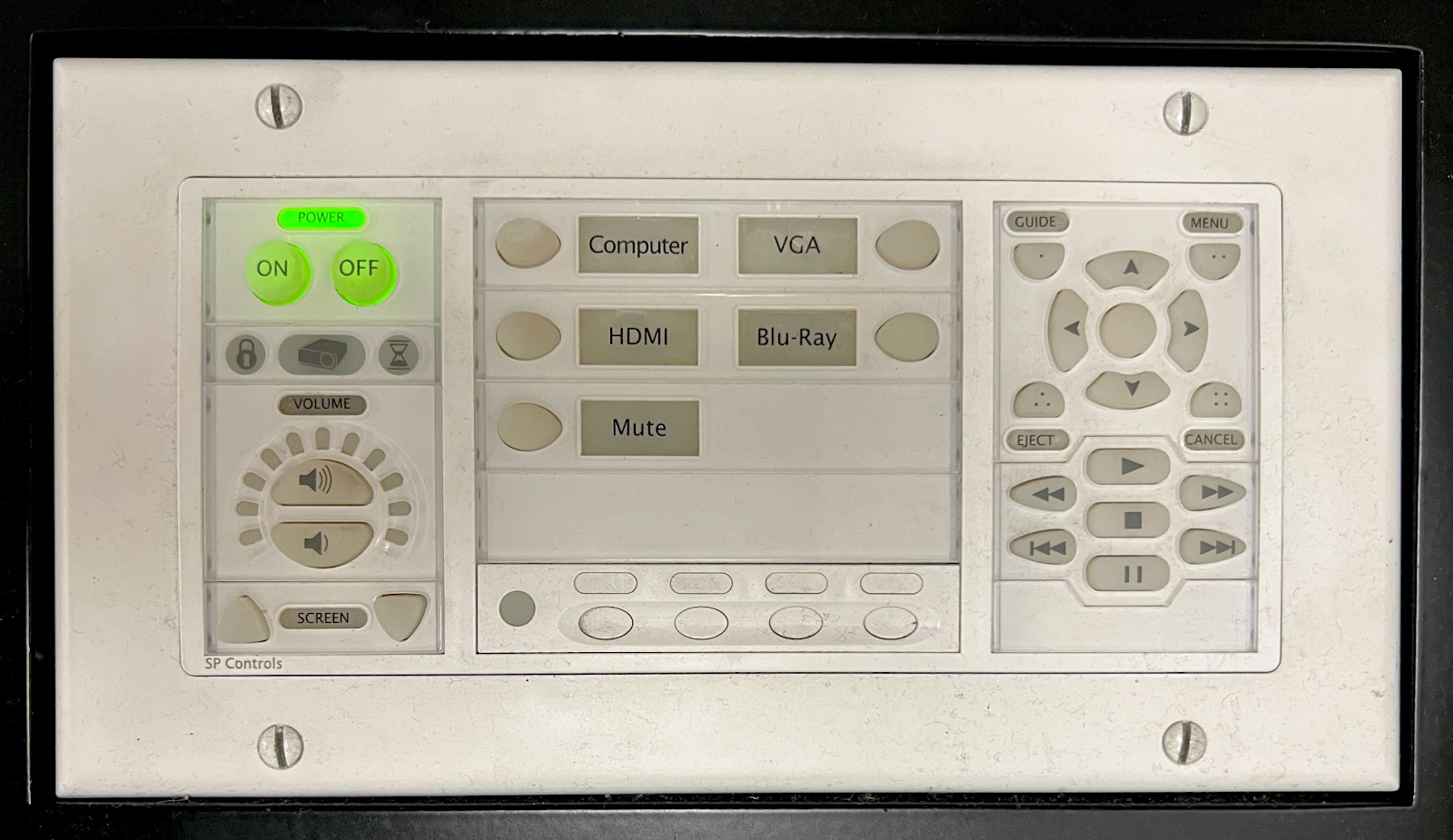
-To turn the room on, press the “On” button in the top left corner of the panel:
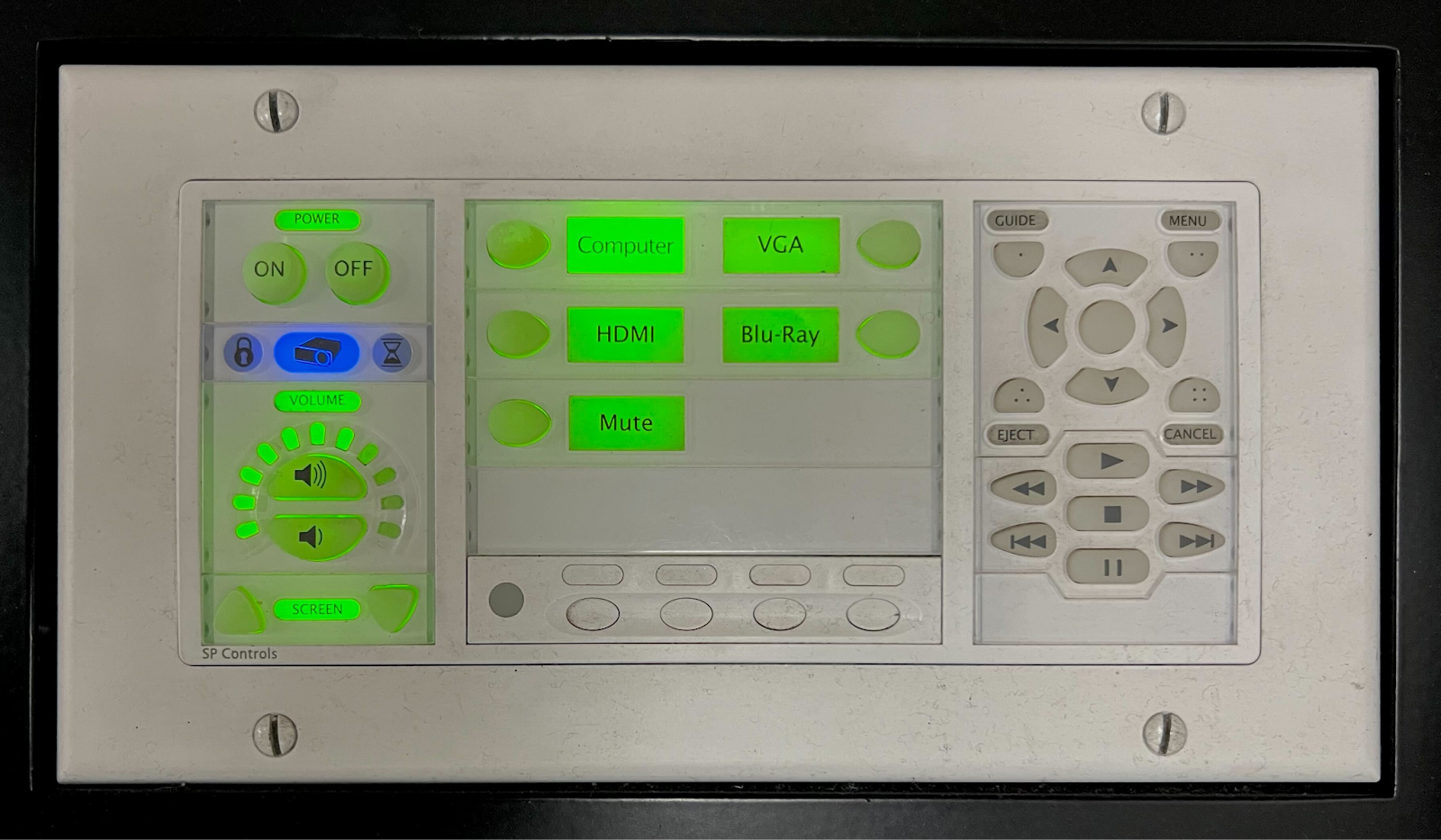
-Once the room is turned on, the rest of the buttons will activate and light up
Selecting a Source
-To use the in-room computer, press the “Computer” button on the panel.
-To use your own laptop, press the “HDMI” button on the panel.
-To adjust the master volume, you can press the buttons on the left side of the panel.
-If a button is not responsive, try pressing it again or pressing it harder in order to register.
Turning off the room
-Press the “Off” button after your class to make sure the room is ready for the next person.
Troubleshooting
Nothing is turning on?
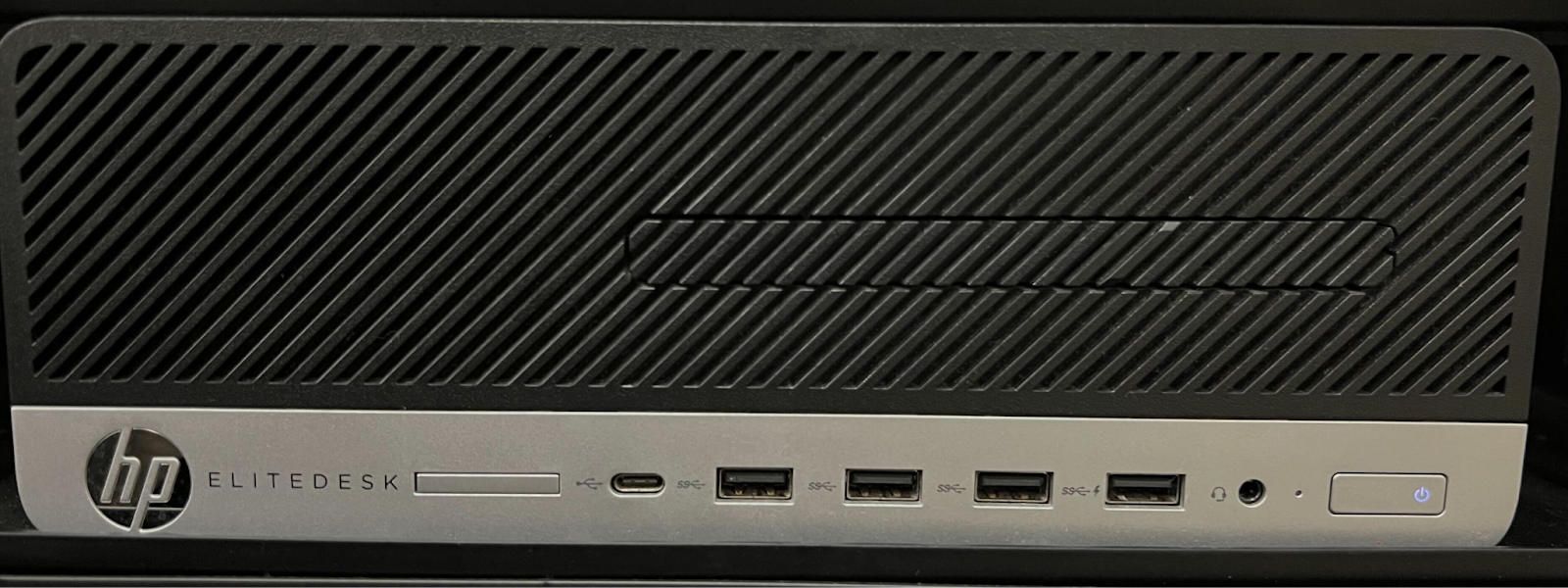
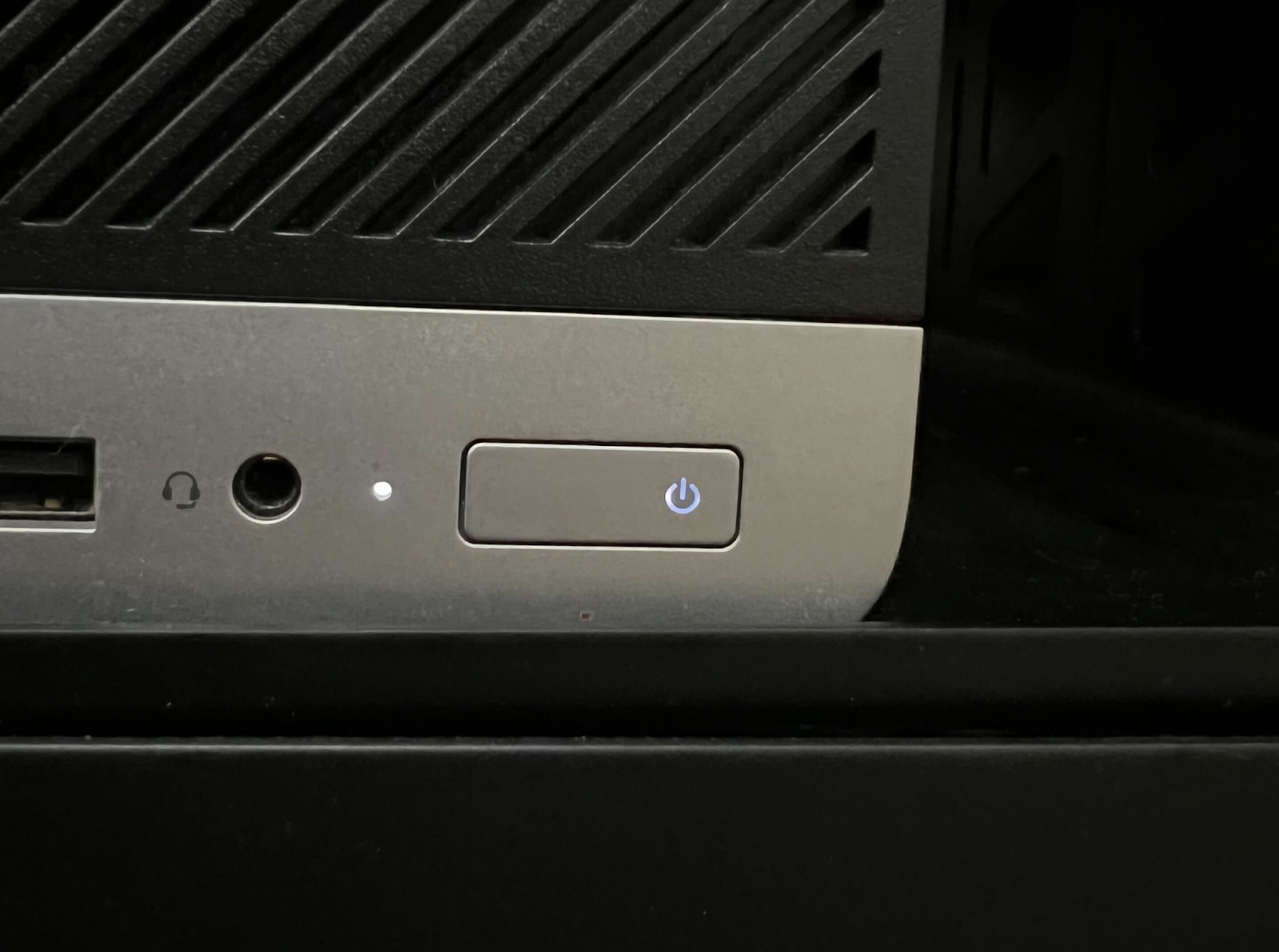
-Make sure the computer is on! The light should be a solid white, not flashing or off
Volume not working?
-Make sure the master volume is turned up and unmuted on the panel.
-Check the volume on the bottom right side of the computer screen.
-Check the volume on the video you are trying to play.
-If you’re using your laptop, go into the audio settings and make sure the correct output is selected!
-Change Sound Output Settings on Mac
-Change Sound Output Settings on Windows 11
Front TV or projector not displaying?
-Press the “Computer” button again if you are using the in-room computer.
-Press the “HDMI” button again if you are using your own laptop.
-If the front screen still doesn’t turn on, call x5050!
Only the left monitor is on?
-Make sure you’re signed into the computer! The right monitor will not turn on if you aren’t signed in.
-Press the “Computer” or “HDMI” button again.
Laptop only displaying on the right monitor?
-This is by design! When using your own computer, it will only show on the right screen. The left screen is dedicated to displaying what is on the in-room computer.