

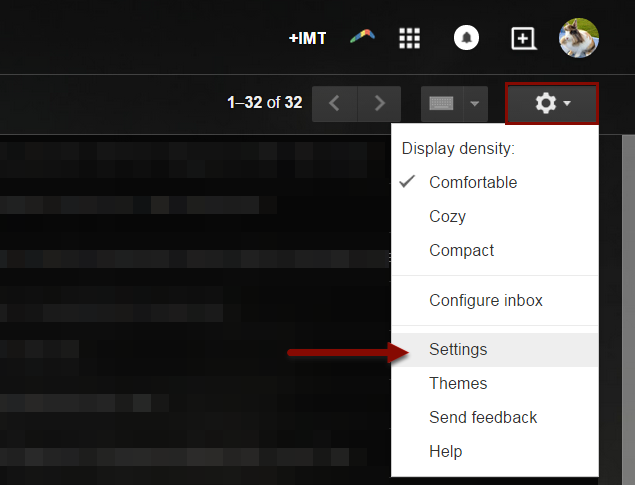
1) Go to your Gmail settings
2) Go to the “Themes” tab at the top of your settings list, there are number to choose from, based on color, HD, Custom, or classic. To select a background image for your custom theme, you must first select either “Custom light” or “Custom dark” you will then have the option to “Select a background image.” If you click that you will be given five options: Featured images, your photos, upload an image, an image URL, or recently selected images 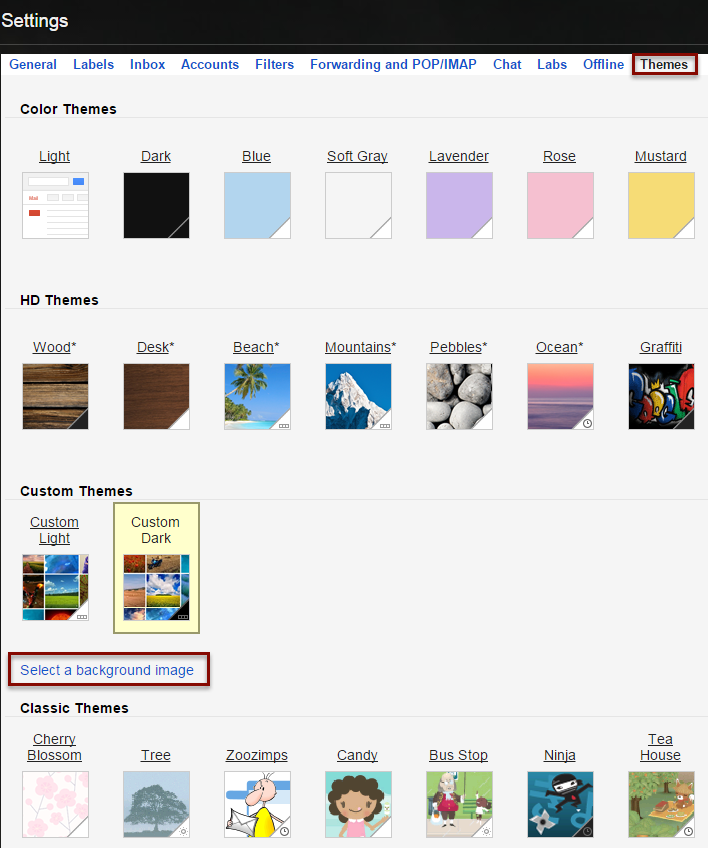
SOURCE MATERIAL:
https://support.google.com/mail/answer/112508?hl=en